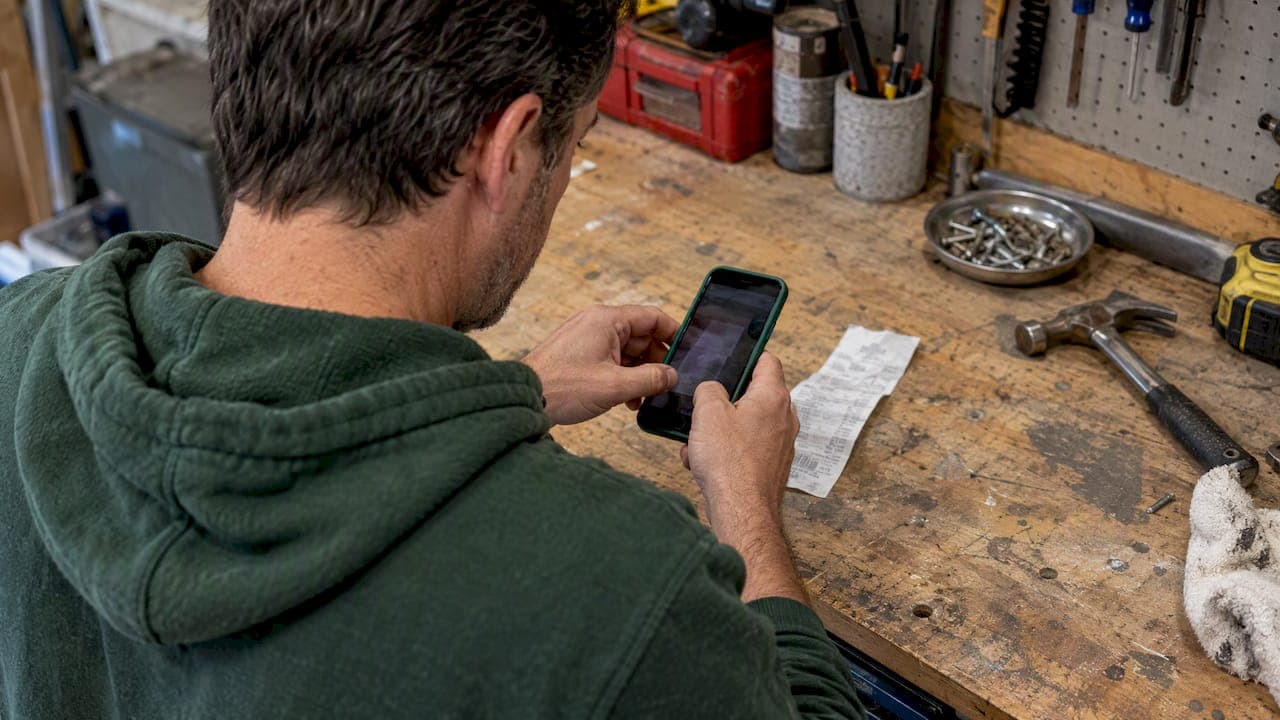
Capture every repair receipt immediately, either a photo or a drop into a single physical envelope, then move it to a labeled archive once a week. That two-step habit beats any fancy system because it never depends on willpower. If you want a digital-first shortcut, a phone photo filed by date and vendor works; if you want the whole job handled for you, a dashboard built for multi-property owners can store, tag, and remind you automatically.
TL;DR:
- Record the repair, vendor, service date, cost, warranty term, and odometer reading for vehicle work so claims and maintenance records remain useful.
- Keep each warranty with its matching receipt, record its start and end dates plus vendor contact, and set a calendar reminder before expiration.
- A scanner app or tagged cloud folder suits one home or car, while several properties may justify a dashboard linking receipts, vendors, and maintenance reminders.
- File receipts by year, property, and expense type, keeping routine repairs separate from improvements because tax treatment can differ and records support returns.
- Keep two copies of every digital receipt in separate locations, protect the storage app with a password or biometric lock, and confirm bulk export works.
Table of Contents
- Quick Capture Options: Paper Fallback and Digital-First Capture
- A Simple, Repeatable Two-Layer System to Store and Find Receipts
- Tool Categories and How to Choose One
- Organizing Warranties and Proof of Purchase for Easy Claims
- Vehicle-Specific Filing: What to Record and Where to Keep Service Receipts
- Client-Tested Workflows: One-Minute Capture and Weekend Warranty Consolidation
- Bringing Repair Receipts Into One Property Management System
- Best Practices for Categorizing Receipts by Property and Expense Type
- Using Receipt Data for Budgeting and Expense Tracking
- How to Back Up and Secure Digital Receipts
- Why Simple, Repeated Habits Beat Complicated Setups
- How Property Command Center Helps You Keep It All Straight
- FAQ
- Sources
- Final Reading: FTC, IRS, and CFPB Resources on Warranties and Recordkeeping
Quick Capture Options: Paper Fallback and Digital-First Capture
The moment you get a repair receipt is the moment you are most likely to lose it. A same-day capture habit fixes that, and you only need to pick one default method and stick to it.
The paper fallback is the simplest: keep a single envelope or small folder, drop every receipt in it the day you get it, and write a quick note on the paper itself if the vendor left out details like what was replaced. The CFPB's spending tracker recommends exactly this: an envelope for receipts and a short written note on anything unclear.
Digital-first capture works for phones already in your pocket. A few habits make the scan usable later:
- Shoot on a flat, well-lit surface with the receipt fully inside the frame and no shadows across the text.
- Save PDFs straight from email instead of screenshotting them, since the original file keeps more detail.
- Name every file the same way: date, vendor, short description, like 2026-03-14_ACPlus_furnace-repair.
Pairing both methods covers the gaps. Keep the envelope in your car or kitchen drawer as a temporary inbox for the days your phone isn't handy, then photograph each paper receipt before it goes into permanent storage so you have a backup copy in two places.
Pro Tip: Set your phone camera to grid lines and square up the receipt edges before shooting. It cuts retake time and keeps text readable when you zoom in later.
A Simple, Repeatable Two-Layer System to Store and Find Receipts
One folder for everything eventually becomes unsearchable. A two-layer system solves that without adding real work.
The first layer is your Inbox: wherever you capture receipts the moment you get them, whether that's the envelope or a phone folder named "To File." The second layer is your Vault: the labeled, permanent archive where receipts live once they're tagged and sorted. Nothing stays in the Inbox longer than a week.
Six fields make a receipt useful months or years later, and skipping any one of them is usually what causes a dead end during a warranty claim or tax season:
- What was done (repair, part, or service).
- Vendor or company name.
- Date of service.
- Cost paid.
- Warranty length, if any.
- Odometer reading, for vehicle-related repairs.
On a weekly or monthly schedule, move everything from the Inbox into the Vault, tag each item by property or vehicle, and delete any duplicate photos you took as backups. This routine echoes what the CFPB's spending tracker calls sorting receipts into categories weekly and tallying totals for a monthly overview.
For your first week, try this short checklist:
- Pick one Inbox location and tell yourself that's the only place receipts go.
- Capture every receipt that day, no exceptions.
- On day seven, move everything to the Vault with the six fields filled in.
- Delete duplicates and confirm each file is named consistently.
A consistent capture-first habit reduces the chance a receipt is lost, since the biggest failure point in most systems is the gap between getting the paper and actually filing it, according to the CFPB's spending tracker guidance.
Tool Categories and How to Choose One
Picking a tool is easier once you know which category matches your habits rather than chasing features you won't use.
- Single-purpose receipt apps focus on fast capture and warranty reminders, often with local-first storage for privacy.
- General scanner apps with OCR turn photos into searchable text, useful if you want to search by vendor name or amount later.
- Cloud storage with folders and tags works well if you already use a service for other documents and just need a consistent naming system.
- All-in-one property dashboards combine receipts, warranties, vendor contacts, and reminders in one place, which matters more as the number of properties or vehicles grows.
Before settling on one, run through a short checklist: does it support searchable text or OCR, does it back up and let you export your data, does it store files locally or in the cloud (a real privacy distinction), does it sync across your phone and computer, and can you bulk import old receipts instead of entering them one at a time.
A simple scanner app or a tagged cloud folder is enough if you manage a single home or car. Once you're juggling several properties, vendors, and warranty windows at once, the time saved by an integrated dashboard tends to outweigh the setup cost of switching.
Organizing Warranties and Proof of Purchase for Easy Claims
A warranty is only useful if you can find it fast when something breaks. The FTC advises saving a copy of the warranty alongside the original receipt, since both documents together prove the purchase date and your ownership if you ever need to make a claim.
- Store the warranty PDF or photo in the same folder as its matching receipt, never separately.
- Record the start date, end date, and vendor contact information right on the file name or in a short note.
- Set a calendar reminder a few weeks before any warranty expires so you have time to act.
- For emailed warranties, save the original email as a PDF or forward it straight to your archive, and note the order number somewhere visible.
Pro Tip: Add the warranty expiration date to your phone calendar the same day you file the receipt. It takes ten seconds and removes the need to dig through files later.
Vehicle-Specific Filing: What to Record and Where to Keep Service Receipts
A car accumulates repair paperwork fast, and a dedicated folder per vehicle keeps it from mixing with everything else. Pair a digital folder with an optional paper folder in the glovebox for receipts collected on the road, and always note the odometer reading at the time of service.
- Keep oil-change intervals, parts replaced, and service dates together in one running record.
- Note the odometer reading every time, since it matters for warranty verification and for proving maintenance history at resale.
- Attach each new receipt to your scheduled maintenance reminders so a full service history builds automatically without extra effort.
A complete service history is one of the more persuasive details for a buyer evaluating a used vehicle, and it only exists if the receipts were filed consistently from the start.
Client-Tested Workflows: One-Minute Capture and Weekend Warranty Consolidation
A workflow only sticks if it fits inside the time you actually have. The one-minute capture routine works like this: photograph the receipt, drop it into your phone's "To File" folder, and move on. No tagging, no sorting, no decisions in the moment. That single action is what prevents the pile of paper that eventually gets thrown out by accident.
Once a month, set aside a weekend block to consolidate warranties by asset. Pull every warranty collected that month, match it to its receipt, and confirm the expiration date is recorded somewhere visible.
- Capture first, always, with zero sorting required in the moment.
- Batch the sorting into one sitting instead of spreading it across the week.
- Match every warranty to its receipt before filing either one away.
Our service history template and property information sheet give you a starting structure if you'd rather not build one from scratch.
Bringing Repair Receipts Into One Property Management System
Receipts that live in isolation from the rest of your property records create extra work every time you need them. The real value shows up when a receipt connects to the property it belongs to, the vendor who did the work, and the maintenance schedule that triggered it.
A centralized system links four things automatically: the receipt itself, the property or unit, the vendor contact, and the next scheduled task. When a water heater repair receipt sits next to the plumber's contact information and the next inspection date, you skip the step of hunting through email or a separate spreadsheet when the same issue comes up again.

This matters more as the number of properties grows. A single home owner can often get by with tagged folders. Someone managing a primary residence, a vacation rental, and a short-term rental property is juggling different vendors, different maintenance cycles, and different tax treatment for each, and a scattered system means re-learning the same lookup every time something breaks.
Keeping vendor details tied to the property they serve also saves time during repairs, since you're not scrolling through old texts to find the electrician's number. Our guide on organizing contractor contacts by property covers how to structure that link so it stays current as vendors change.
The goal isn't a bigger filing system, it's fewer places to look. A receipt that's tagged to a property, linked to a vendor, and tied to a maintenance reminder answers three questions at once instead of requiring three separate searches.
Best Practices for Categorizing Receipts by Property and Expense Type
Categorization only helps if the categories match how you'll actually search later, not how neat they look on a shelf. Two dimensions do most of the work: which property or asset the expense belongs to, and what kind of expense it is.
Start with property first. Every receipt gets tagged to the specific home, rental, or vehicle it applies to, since mixing expenses across properties is the fastest way to lose track of what each one actually costs to maintain.
Within each property, a short list of expense types covers almost everything: routine maintenance, emergency repair, appliance or system replacement, and improvement or upgrade. Keeping these four separate matters at tax time too. The IRS advises organizing supporting documents by year and type of income or expense, since that structure is what supports the entries on a tax return if a repair expense is deductible.

A repair and a capital improvement are often treated differently for tax purposes, so keeping that distinction clear in your filing system from the start saves a reconciliation headache later. If you're unsure which category a specific expense falls into for your situation, a tax professional or a resource like AfterTaxBiscuit's guide on 1099 write-offs can help clarify quarterly estimates and what counts as deductible.
Keep the categories few and consistent rather than building a new tag for every minor variation. Four or five expense types per property, applied the same way every time, will serve you better over several years than a dozen categories you can never remember the difference between.
Using Receipt Data for Budgeting and Expense Tracking
A filed receipt is a record. A tagged receipt with a cost field is a budgeting tool. The difference is whether you pull the dollar amount out and use it somewhere beyond the archive.
Once your six fields are filled in consistently, the cost field across a year of receipts tells you what each property or vehicle actually costs to run, not what you assumed it costs. That number becomes useful for comparing a vacation rental's upkeep against its income, deciding whether a recurring repair is cheaper to keep patching or to replace outright, and setting aside a realistic maintenance reserve instead of guessing.
The CFPB's spending tracker recommends tallying totals on a monthly basis for exactly this reason: a running total catches spending patterns that a single receipt never shows on its own. Applied to repair expenses, that same habit surfaces which property is quietly costing more than the others.
If you already use accounting software for other income and expenses, repair receipts slot into the same reporting. A guide on financial reports worth monitoring in FreshBooks walks through which reports actually matter once expense data is flowing in consistently, which applies whether the expenses are repairs, supplies, or vendor payments.
The habit that makes this work is small: every time you file a receipt, glance at the cost and ask whether it's routine or unusual. That ten-second check, repeated over a year, builds a far more accurate budget than any after-the-fact reconstruction ever will.
How to Back Up and Secure Digital Receipts
A single copy of a digital receipt is one hard drive crash away from gone. Backing up doesn't need to be complicated, but it does need to happen automatically rather than depend on you remembering.
The simplest rule is two copies in two places: one on the device where you captured the receipt, and one synced somewhere else, whether that's cloud storage or a dedicated backup drive. If you're using a cloud folder, confirm it syncs automatically rather than only when you remember to open the app.
Security matters as much as backup. Repair receipts often carry personal details like your address, vendor names, and sometimes payment information, so a password or biometric lock on the storage app is worth the extra few seconds it adds. App-store listings for dedicated receipt organizers often highlight local-first privacy and quick capture as a selling point for people who'd rather keep sensitive documents off a shared cloud account.
Export matters too, since a backup you can't get data out of isn't much of a backup. Choose a system that lets you export receipts as a batch, whether as PDFs or a spreadsheet of the six key fields, so you're never locked into one app if you switch later.
Why Simple, Repeated Habits Beat Complicated Setups
The best receipt system is the one you'll actually use at 6 PM after a long day, not the one with the most features. One capture point beats three partial ones, because every extra decision point is a chance to lose the receipt entirely. Block ten minutes a week to move things from Inbox to Vault, and the system stays honest on its own.
— Francisco
How Property Command Center Helps You Keep It All Straight
Once capture and filing become routine, a dashboard does the heavy lifting of keeping it organized across every property. A document vault can store receipts and warranties together, reminders flag expirations before they sneak up on you, and a vendor directory keeps contact details attached to the property they serve.
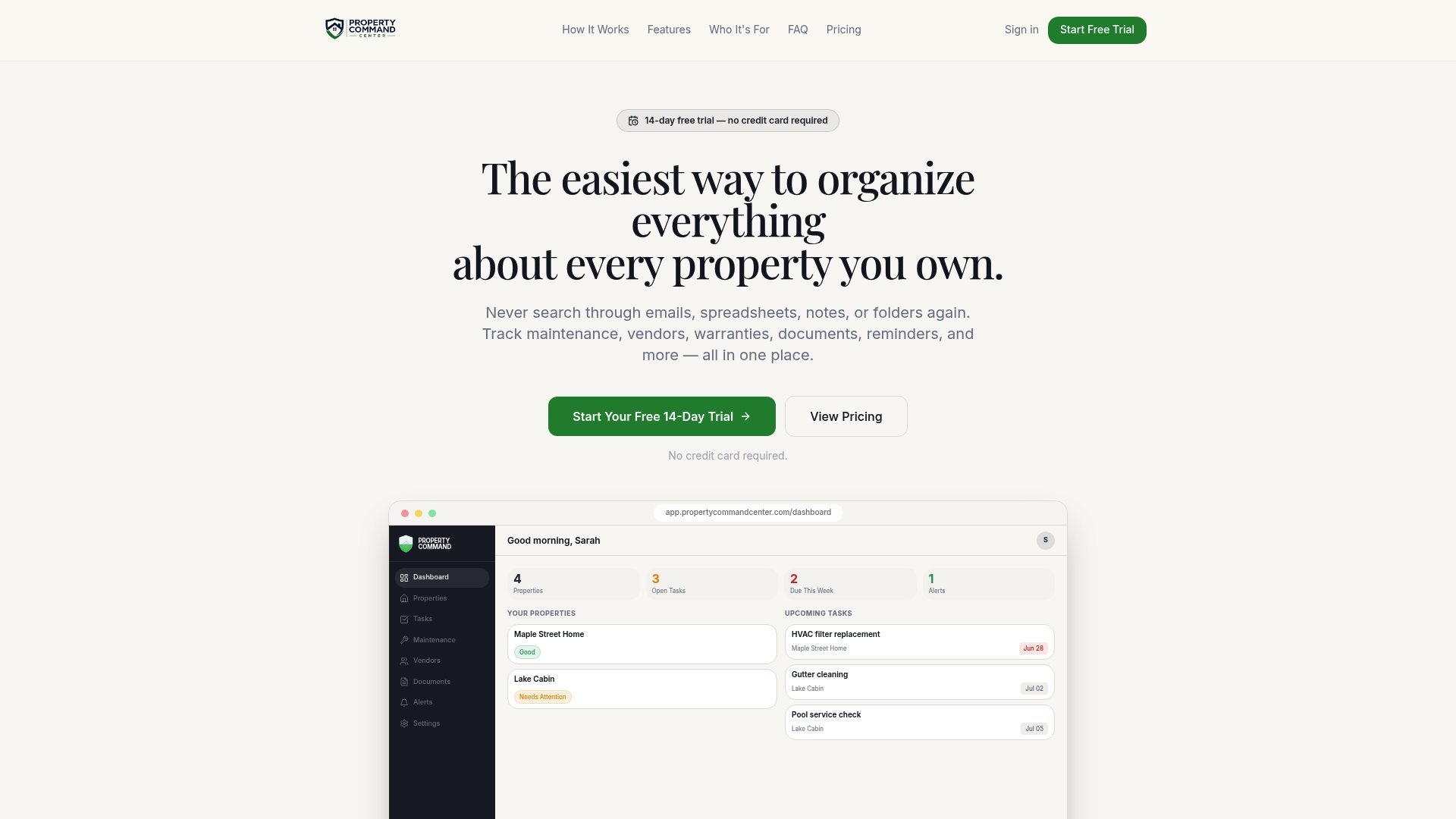
DIY folders work fine for one home. Once you're tracking repairs, warranties, and vendors across several properties or a vacation rental, a dashboard saves the time that scattered spreadsheets eat up. Compare the Starter and Pro plans and start a free trial, no credit card required.
FAQ
What is the best way to organize receipts?
The most reliable method is a two-layer system: capture every receipt immediately into a single inbox (paper envelope or phone folder), then move it to a labeled archive weekly with a few key details recorded, like vendor, date, and cost. Consistency in the capture step matters more than the sophistication of the storage step.
What is a good organizer for receipts?
A good organizer matches your habits rather than offering the most features: a simple envelope works for light use, a scanner app with OCR helps if you need to search text later, and an all-in-one dashboard helps once you're managing several properties or vehicles at once. Look for backup, export options, and either local or cloud privacy depending on your preference.
How should a small-scale owner pick a receipt organizer?
For someone managing a few properties or vehicles rather than a large business, the right organizer is one that tags receipts by property, supports OCR search, and backs up automatically so nothing depends on a single device. An integrated dashboard tends to save more time than a basic scanner app once multiple properties are involved.
How do I categorize receipts for taxes?
Organize receipts by year and by type of income or expense, since the IRS recommends this structure because it directly supports the entries on a tax return. Keep routine repairs separate from larger improvements or replacements, since they're often treated differently for deduction purposes.
Sources
- Warranties | Consumer Advice
- What kind of records should I keep | Internal Revenue Service
- Spending tracker tool
Final Reading: FTC, IRS, and CFPB Resources on Warranties and Recordkeeping
For deeper detail beyond this guide, government sources cover the legal and tax side directly: the FTC's warranty guidance explains what to save and why, the IRS pages outline recordkeeping rules for expenses, and the CFPB's spending tracker offers a practical template for tallying receipts.