
Grab a free vendor list template in Google Sheets if you need live collaboration, in Excel if you want advanced formulas and pivot tables, or export a printable PDF for handing out on event day. Free, customizable versions of all three exist for immediate download. Copy a Google Sheets version now if multiple people need to edit it at once, or download the Excel file if you plan to build formulas around it.
TL;DR:
- Well-designed vendor templates should include identity, contact, finance, and governance fields to prevent duplicate records and ensure data consistency.
- Using dropdown menus and locking key ranges in spreadsheets helps maintain data accuracy and simplifies filtering for better vendor management.
- Regular maintenance, including verifying legal names and updating contact info through official records, is essential to keep the list reliable over time.
- Managing multiple properties or events often requires shifting to centralized platforms like Property Command Center, which consolidate vendor data and task management.
- Creating separate vendor lists for preferred, approved, restricted, and backup vendors helps organizations control contractor quality and respond quickly to scheduling changes.
Table of Contents
- Where to Find Free Vendor List Templates and What They Include
- What to Include: The Fields That Actually Matter
- Setting Up Your Template: Excel and Google Sheets Steps
- Building a Day-of Contact Sheet for Events
- How to Verify Vendor Information Before It Goes on the List
- Connecting Your Vendor List to Procurement or Accounting Tools
- Preferred, Approved, and Blacklisted: The Vendor List Types You Need
- Organizing Vendors by Category and Priority
- Keeping the List Accurate Over Time
- When a Spreadsheet Stops Being Enough
- A Simpler Alternative to Managing Vendor Spreadsheets Across Properties
- Sources
- FAQ
Where to Find Free Vendor List Templates and What They Include
Most free vendor list templates come in three formats: Google Sheets, Excel, and printable PDF. Each serves a different moment in the process. Google Sheets works best when a planning team or property owner needs several people editing the same file at once. Excel suits anyone building formulas, pivot tables, or macros on top of the raw data. PDF exists purely for the day you need something to hand a venue manager or a subcontractor who has no interest in opening a spreadsheet.
A well-built template usually ships with a few standard tabs and columns:
- Vendor ID and legal name, so records stay unique even when two vendors share a similar trade name
- Contact person, phone, and email for the person who actually answers
- Payment terms and current status (Active, Inactive, Pending Review)
- A notes or history column for past issues, renewals, or contract dates
One catch worth knowing before you download anything: some Excel vendor list templates include macros or advanced formulas that won't run once imported into Google Sheets. If you're planning to switch platforms later, strip out macros first or rebuild those formulas natively in Sheets. Moving the other direction, from Google Sheets to Excel, is more forgiving. Export as .xlsx and most standard formulas, conditional formatting, and dropdowns carry over cleanly.
What to Include: The Fields That Actually Matter
Not every column deserves a spot on your sheet. Templates that pile on 40 fields tend to get abandoned within a month because nobody wants to fill them in. Procurement teams that keep templates lean report much higher long-term usage than those that try to capture everything at once. Build around four field groups instead:
- Identity fields. Vendor legal name, vendor ID, and trade name (if different from the legal entity). This matters more than it sounds. Two vendors doing business under similar names is one of the most common causes of duplicate payments.
- Contact and operational fields. Contact person, direct phone, email, service category, and general availability window (weekdays only, 24/7 emergency, etc.).
- Finance and contract fields. Payment terms, currency, typical lead time, and contract start/end dates.
- Governance fields. A status column (Active/Inactive), a consistent naming convention for legal suffixes, and one person designated as the data steward responsible for keeping entries current.
That naming convention matters more than most people assume. Vendor master data guidance from Ivalua groups these exact categories, identity, contacts, payment terms, and risk indicators, as the backbone of any usable vendor record. Standardize how you write "Inc." versus "Incorporated," and don't abbreviate inconsistently across rows.
Pro Tip: Never delete an inactive vendor. Move the row to an "Inactive" tab instead. You'll want that contract history the next time a similar job comes up, and deleting records is how vendor lists quietly lose their institutional memory.
Setting Up Your Template: Excel and Google Sheets Steps
A blank template is just a spreadsheet until you configure it. Four steps turn it into something your team will actually use.
- Set up dropdowns. Use Data Validation in Excel or Google Sheets to restrict the Status column to Active, Inactive, or Pending Review, and the Category column to your actual service types (plumbing, catering, AV, landscaping). This keeps entries consistent and makes filtering reliable later.
- Freeze the header row and add filters. One click in either platform. This alone saves the constant scrolling and re-reading of column labels that makes big vendor lists exhausting to navigate.
- Add basic formulas. A SUM or COUNTIF for total active vendors, plus a second sheet or filtered view that pulls only vendors marked "Selected" for a current project.
- Lock down sharing and schedule audits. In Google Sheets, set view-only permissions for anyone outside your core team. In Excel, protect key ranges so formulas can't be accidentally overwritten. Then put a recurring monthly reminder on your calendar to review the list.
That last step isn't optional busywork. Teams that switch from scattered emails and notes to a structured, actively maintained list report saving roughly 40% of the time they previously spent hunting down vendor contact details across inboxes and old texts. A spreadsheet that nobody updates gives back none of that time.
Building a Day-of Contact Sheet for Events
Your working vendor list and your day-of sheet are two different documents, and mixing them up is a common mistake. The day-of sheet strips everything down to what a stressed-out coordinator needs at 7 a.m. on event morning.
Include only:
- Role and company name
- Main phone number and a backup contact
- Arrival time and setup/breakdown location
- Final payment status (paid in full, deposit only, balance due on-site)
Event-specific contact sheets typically itemize costs by category and track payment status separately from the main vendor database, precisely so venue staff aren't scrolling through irrelevant columns. Format for print by removing extra columns, widening row height for legibility, and forcing a page break so the sheet fits on one page. Printable day-of sheets work best as single-page handouts for venue staff, with a PDF version emailed to your lead vendors the night before.
How to Verify Vendor Information Before It Goes on the List
A vendor list is only as reliable as the data typed into it, and bad entries spread fast once they're copied between projects. The single biggest source of unreliable records is an unverified legal name. ECCMA's analysis of supplier master data found that a significant share of supplier records can't be confirmed as accurate without checking them against the actual government business registry where that vendor is incorporated. A slightly misspelled name or an outdated trade name creates a duplicate that quietly corrupts your list.
Three checks catch most problems before they cause trouble. First, cross-reference the legal name against a state business registry or the vendor's own W9, not just what's on their invoice letterhead. Second, call the phone number once before you rely on it. Directories go stale faster than most people expect, especially for smaller trade contractors who change numbers or subcontract out. Third, confirm payment terms directly with the vendor rather than copying them from a previous contract; terms shift more often than owners assume.

Assigning one person as the data steward for the list solves most of this automatically. When one person owns the updates, entries stay consistent instead of drifting as different team members add rows in their own format. Property owners managing contractors across several homes run into this constantly. A plumber's number that worked at one property gets copy-pasted onto another, and nobody catches that it's actually the wrong branch office until a repair gets delayed.
Connecting Your Vendor List to Procurement or Accounting Tools
A standalone spreadsheet works fine until you need that vendor data to talk to your accounting or purchasing tools. The good news: most vendor list templates export cleanly into formats accounting software already understands.
Start with the export. Both Excel and Google Sheets support CSV export, and CSV is the near-universal import format for accounting platforms and procurement systems. Before exporting, make sure your Vendor ID column matches exactly how that same vendor is entered in your accounting system. Mismatched IDs are the most common reason an import fails or creates duplicate vendor records on the other end.
Payment terms and tax ID fields deserve extra attention here. If your accounting software tracks 1099 vendors, keep a dedicated column on your list flagging which vendors need that designation, so nothing gets missed at tax time. For procurement workflows, a Status column that mirrors your purchasing system's own vendor states (Approved, Under Review, Suspended) makes the sync far less error-prone than trying to translate between two different labeling systems every time.
If you're managing rental properties or a small portfolio, a lighter-weight option is to stop treating the spreadsheet and the accounting record as two separate systems that need syncing. A vendor onboarding checklist can help you standardize the fields you capture up front, which makes any later export or integration far cleaner.

Preferred, Approved, and Blacklisted: The Vendor List Types You Need
Not every vendor belongs on the same list, and lumping them together is how bad actors slip back into rotation. Most organizations run at least three distinct vendor lists, even if they live on separate tabs of the same file.
A preferred vendor list holds the contractors and suppliers you actively want to rebook. These are vendors with a track record: on time, on budget, easy to reach. An approved vendor list is broader. It includes anyone cleared to do business with you, whether or not they've earned repeat work yet, typically because they passed an insurance check, licensing verification, or a basic background review.
A restricted or watch list tracks vendors you're using with caveats, maybe a payment dispute is still open, or their insurance certificate expired and hasn't been renewed. And a blacklisted vendor tab (kept, not deleted, per standard governance practice) preserves the history of why a vendor was cut loose, so nobody accidentally rehires them two years later without knowing why.
Event planners often add a fourth category: a backup vendor list, populated with alternates for high-risk categories like catering or AV, ready to call the moment a first-choice vendor cancels. Property owners with several homes tend to run something similar for emergency trades, plumbers and electricians they've never used but have pre-vetted, just in case their regular contractor is unavailable during a crisis.
Organizing Vendors by Category and Priority
Once your list grows past 15 or 20 vendors, flat alphabetical order stops being useful. Sort by category first, then by priority within each category.
Category grouping usually maps to trade or service type: plumbing, electrical, landscaping, catering, AV, cleaning. Within each category, rank vendors by priority using a simple tier system: Tier 1 (your go to, call first), Tier 2 (solid backup, slightly higher cost or slower response), and Tier 3 (last resort, used only when the first two are unavailable). Color-coding these tiers directly on the spreadsheet, green for Tier 1, yellow for Tier 2, red for Tier 3, lets anyone scanning the list make a decision in seconds without reading every row.
For property owners juggling multiple addresses, add a Property or Location column alongside category. A landscaper who covers three of your five properties but not the other two needs that noted clearly, or someone will call them for a job outside their service area. Filtering by both category and location at once is exactly the kind of task a spreadsheet handles fine at small scale, but starts to strain once you're tracking a dozen properties and forty-plus vendors across all of them.
Keeping the List Accurate Over Time
A vendor list decays the moment you stop updating it. Phone numbers change, companies close, payment terms get renegotiated, and six months later half the entries are quietly wrong. The fix isn't complicated, but it does require discipline nobody enjoys maintaining alone.
Set a recurring monthly or quarterly audit, whichever matches how often you actually engage new vendors. During that audit, confirm every Active vendor still has correct contact info, move anyone unused for over a year to Inactive rather than deleting them, and check that payment terms match the vendor's most recent invoice. Enforcing one consistent naming convention across every entry, no abbreviations one week and full names the next, prevents the duplicate-record problem that quietly breaks filters and lookups down the line.
The biggest maintenance failure point isn't technical. It's ownership. Lists that get updated by whoever happens to be adding a vendor that week drift out of consistency fast. Lists with one named data steward responsible for reviews stay clean far longer. That single decision, assigning ownership, tends to matter more than any formula or dropdown you build into the sheet.
When a Spreadsheet Stops Being Enough
Spreadsheets handle vendor lists fine for a single property or a one-off event. The trouble starts once you're managing three, four, or more properties, each with its own contractors, maintenance schedules, and document trail. At that point, the same duplication problems that plague messy corporate vendor lists, mismatched names, stale phone numbers, orphaned records, start showing up across every property you own, and a single spreadsheet gets harder to keep straight.
A few signals suggest it's time to centralize: you're updating vendor info more than once a week, you've caught the same contractor listed under two slightly different names, or you're juggling more than three properties with different vendor sets. Property Command Center exists for exactly that moment, pulling vendor contacts, maintenance schedules, and warranty documents into one dashboard instead of five spreadsheet tabs. For readers who want a deeper checklist first, our vendor onboarding guide and our post on organizing contractor contacts by property are good next reads.
— Francisco
A Simpler Alternative to Managing Vendor Spreadsheets Across Properties
If you're an owner juggling contractors across two, three, or more properties, Property Command Center replaces the spreadsheet juggling entirely. It's built specifically for owners and families managing multiple homes, vacation rentals, or short-term rentals, not property management firms, so there's no landlord or tenant-management clutter to wade through.
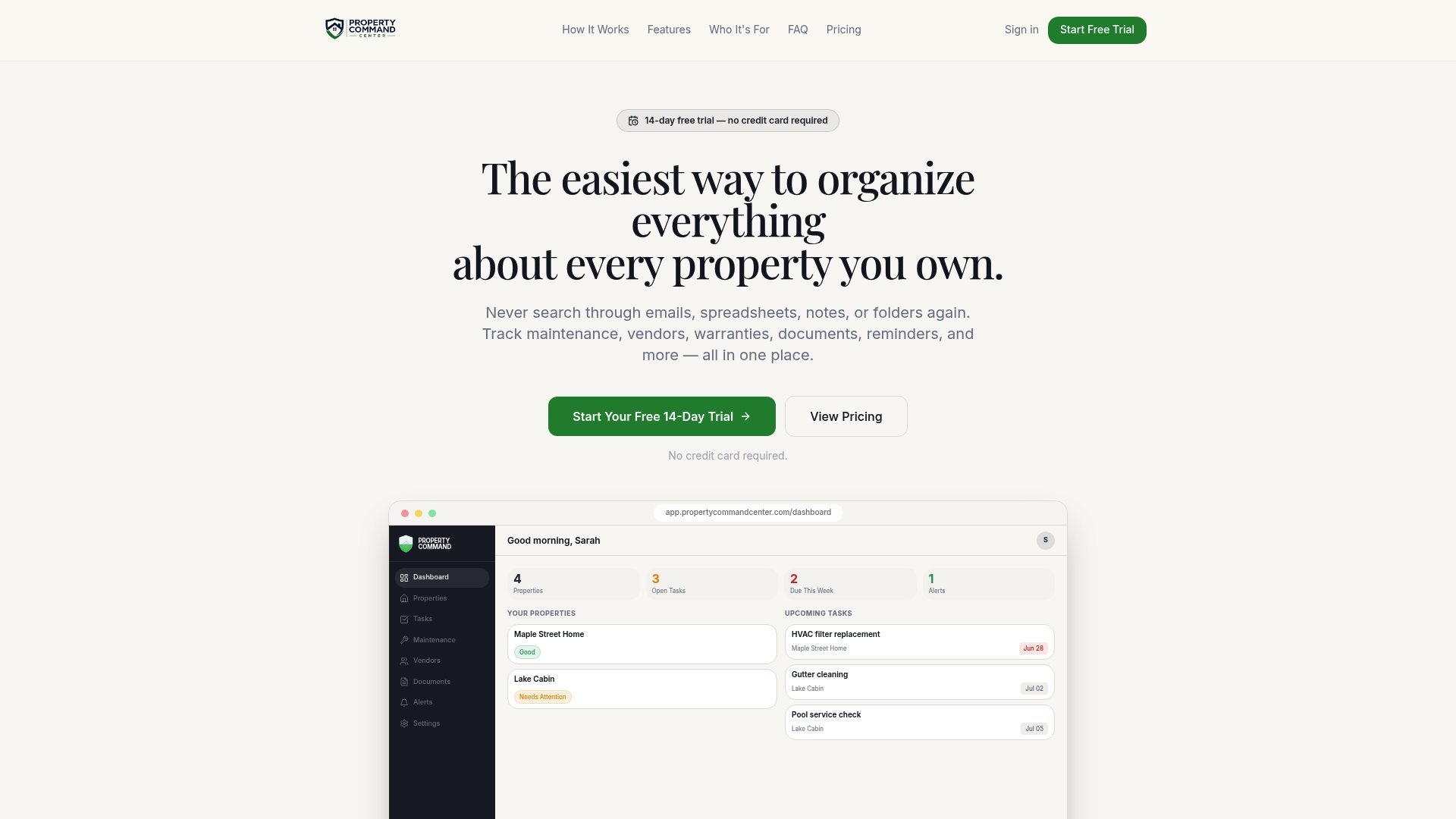
The dashboard centralizes exactly what a good vendor list template tries to capture, contacts, payment status, and history, but adds maintenance schedules, task reminders, and a document vault for warranties and insurance papers, all in one place instead of scattered across tabs and email threads. Check out the vendor directory feature to see how it works, or compare the Starter and Pro plans starting at $19 per month to find the right fit for your portfolio size. A free trial requires no credit card, so you can test it against your current spreadsheet before committing to anything.
Sources
- Free Supplier List Template for Procurement Teams (Excel & Google Sheets)
- Event and wedding planning resources — day-of vendor contact sheet
- Supplier master data quality analysis — ECCMA
- Free Vendor List Template (Google Sheets, Excel, & PDF Downloads) — Spreadsheet Daddy
- Day-of vendor contact sheet — PrintableMake
FAQ
How Do I Create a Vendor List?
Start with a free template in Google Sheets or Excel, then add four field groups: identity (legal name, vendor ID), contact and operational details, payment terms, and a status column. Assign one person as the data steward so entries stay consistent, and set a monthly review to catch outdated contacts before they cause a problem.
How Do I Make a Vendor List in Excel?
Open a blank workbook, create columns for vendor ID, contact info, category, payment terms, and status, then use Data Validation to turn the Status and Category columns into dropdowns. Freeze the header row so labels stay visible while scrolling, and add a filter so you can sort by category or priority instantly.
Can the Vendor List Be Exported to Excel?
Yes. Google Sheets exports to .xlsx with most formulas, dropdowns, and formatting intact, and Excel files import into Google Sheets the same way. The one exception is Excel macros, which generally won't run once imported into Google Sheets, so rebuild any macro-based automation natively if you're switching platforms.
What Is a Vendor List?
A vendor list is a structured spreadsheet or directory that records supplier names, contact details, payment terms, and status in one organized place instead of scattered emails and notes. Teams using a structured vendor list template report saving roughly 40% of the time they'd otherwise spend hunting down vendor information across inboxes.
What's the Difference Between a Preferred and Approved Vendor List?
A preferred vendor list holds contractors with a proven track record that you actively want to rebook, while an approved vendor list is broader and includes anyone cleared to work with you, whether they've earned repeat business yet or not. Most organizations keep both as separate tabs within the same overall vendor list template.